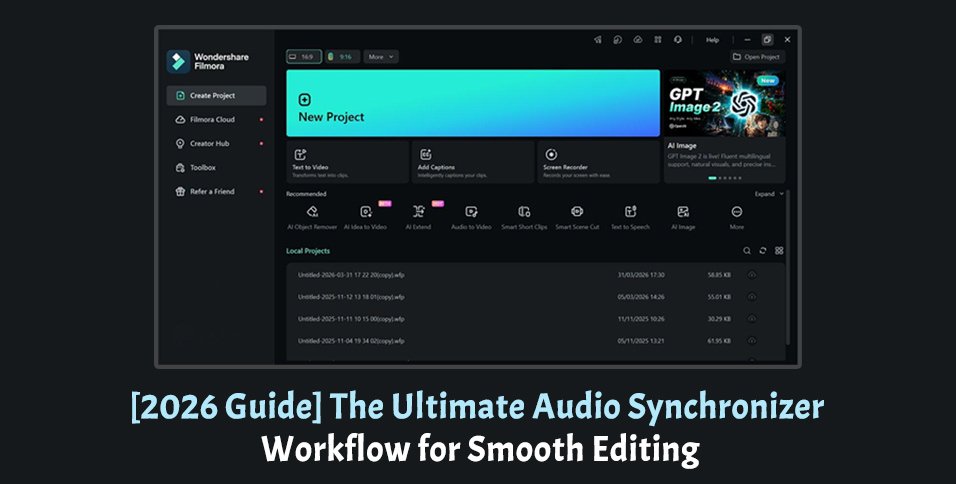
Smooth editing depends on timing that feels natural, not distracting. When dialogue, music, effects, or voiceovers fall out of place, even high-quality visuals can lose impact. This 2026 guide explains how editors can handle sync issues with a clearer, faster workflow. It explains how to sync audio to video more accurately across interviews, podcasts, tutorials, screen recordings, and social clips before final export.
Part 1. What Causes Audio and Video Sync Problems?
Before fixing timing issues, editors need to identify where the mismatch begins. The following recording, editing, and export factors can make it harder to accurately sync video and audio:
- Separate Recording Devices: Cameras and external microphones often begin recording at slightly different moments. This creates separate audio and video files that may not line up naturally in the editor.
- Frame Rate Mismatch: Sync issues can appear when footage, timeline, or export settings use different frame rates. The mismatch may look minor at first, then become more noticeable in longer videos.
- Audio Latency: Wireless microphones, Bluetooth devices, calls, and screen recorders can add a small delay to the sound. This delay makes voices feel slightly behind lip movement and harder to match audio to video later.
- Export Errors: A video may look fine in editing but lose sync after export. Heavy compression, repeated conversions, or unsuitable format settings can disturb the final audio timing.
- Live Recording Lag: Webinars, gaming sessions, and remote interviews often depend on internet speed and system performance. Meanwhile, weak hardware, browser capture, or connection lag may save timing delay into the source recording.
Part 2. How to Automatically Sync Audio and Video Step by Step?
Before choosing any editor, users should understand the basic syncing workflow. Most workflows compare reference sound, external audio, and visible waveform peaks. These steps explain how to automatically sync audio and video accurately:
Step 1. Start by adding the video and a separate audio file. Keep the camera track available for clearer waveform comparison later.
Step 2. On the timeline, place external audio beneath the video. This view makes speech points and sound peaks easier to compare.
Step 3. Now select both clips and choose the automatic sync option. The editor studies the shared waveforms and then aligns the tracks.
Step 4. Check a section where speech or mouth movement appears clearly. Small timing errors become easier to notice during this review.
Step 5. After alignment, mute the rough sound from the camera. The cleaner external track can now carry the final audio.
Step 6. Finish by exporting a short test clip before rendering fully. Then, play it outside the editor to confirm accurate final timing.
Choosing the Right Audio Synchronization Software
A clear syncing workflow becomes easier when the tool supports both automation and control. Below are the features that every reliable audio synchronization software should include:
- Waveform Matching: It examines shared sound peaks across camera tracks and external recordings. Clear waveform matches help software align dialogue, claps, and beats more quickly and accurately.
- Frame-Level Movement: Small timeline movements correct delays when automatic alignment already feels nearly right. Editors can nudge audio precisely without disturbing surrounding video edits or captions.
- Timeline Zoom: Closer timeline views reveal tiny gaps between speech and movement during review. This detail helps users adjust clips without broad dragging or guessing again.
- Reference Audio Support: Camera sound gives the software a rough track for comparison. After syncing finishes, editors can mute it and keep cleaner audio.
- Export Preview: A short export test shows whether timing survives final compression. Playback outside the editor reveals problems before the video goes live.
Wondershare Filmora works well after the core syncing workflow becomes clear. Instead of forcing complex controls, it combines automation with timeline review. Creators can sync audio to video first, then manually refine smaller delays. That balance suits interviews, podcasts, tutorials, lessons, and talking-head recordings. New editors also avoid advanced setup while keeping practical control.
Speed matters most when separate tracks share clear sound patterns. Filmora can align them automatically before detailed timeline work begins. When users need to sync video and audio more closely, waveform zoom and frame movement help. Difficult clips still need careful listening, especially after noise, latency, or frame-rate issues.
Filmora Sync Methods for Cleaner Audio Alignment
Filmora supports two syncing methods for different editing needs. The two methods below show how automatic waveform matching and manual timeline control improve audio alignment:
Automatic Sync Method
Clear waveform peaks make this route useful for cleaner recordings. Filmora studies the camera sound beside the external audio and finds shared timing points. Once matched, the software aligns clips without repeated dragging. For interviews, lessons, tutorials, and podcasts, this helps editors match audio to video faster while keeping reference sound available.
Manual Sync Method
Noisy footage needs a slower, more controlled syncing route. Here, waveform zoom, frame movement, and visual checking matter more than automation. Editors can nudge sound in tiny steps, compare mouth movement, and test playback. This helps synchronize sound with video when delay, weak audio, or frame-rate drift affects timing.
Filmora App for Mobile Edits
The Filmora app supports creators who edit shorter clips on mobile. It suits social videos, travel edits, quick interviews, and creator content. Mobile editing helps when users need faster audio and video synchronization without opening a desktop timeline. For longer projects, desktop editing still gives stronger review control.
Part 3. 6 Best Practices to Synchronize Sound With Video More Accurately
Better recording habits make it easier to synchronize sound with video before deeper timeline correction begins. These best practices help reduce drift, improve alignment, and keep the final export smoother.
- Record a Clear Cue: Add one clap, tap, or spoken marker before the main recording starts. That visible waveform peak gives editors a dependable alignment reference point later.
- Keep Camera Audio: Leave the camera’s raw audio enabled, even when external audio is better. After syncing, mute that track and keep only the cleaner recording.
- Match Timeline Settings: Check frame rate, sample rate, and project settings before arranging clips. Consistent settings reduce drift across interviews, tutorials, podcasts, and long recordings.
- Zoom Into Waveforms: Use waveform peaks to compare speech starts, claps, beats, or impacts. Tiny frame movements can fix timing better than broad timeline dragging.
- Preview Multiple Sections: Review the beginning, middle, and ending before trusting the synced result. Long videos can drift later, even when the first moments look correct.
- Export a Test Clip: Render a short section with clear speech before finalizing the project. Playback outside the editor confirms whether timing remains stable after compression.
Conclusion
Good syncing depends on steady recording habits and careful timeline review. Editors should check reference audio before making final export decisions. Matching settings and waveform checks reduce delay across longer projects. An audio synchronizer workflow helps identify problems before viewers’ notice. Filmora can fit this process through automatic and manual options.Note to Reader: This article presents independent editorial guidance for general editing situations. It does not represent the official position of any publishing outlet. Tool mentions are included for workflow context, not promotional ranking.