Are you familiar with the situation where important information is neatly organized in a spreadsheet, but sharing it with others in an attractive visual format turns out to be difficult? That was exactly the case with my small project. I carefully filled in names, prices, descriptions, and inserted links to photos. The spreadsheet was perfectly structured, but no one could see it. Suggesting that clients open a Google Sheets link? That approach looks unprofessional and does nothing to encourage sales.
I needed a website. But hiring a developer or learning web development from scratch? For a small project, that meant unjustified financial and time costs. I was looking for a solution that wouldn’t require me to rewrite everything from scratch or spend large sums of money. At some point, I asked myself: does a simple and accessible way to how to turn a spreadsheet into a web page exist without needing to learn programming? I began researching this question and discovered that such tools do indeed exist. It turns out that turning a spreadsheet into a website can be done quickly, with minimal expense, and without a single line of code. I decided to try it, and here is what came of that decision.
Why the idea of turning a spreadsheet into a website seemed doubtful and what changed my mind
When I first heard that a Google Sheet could be transformed into a website, I approached the idea with considerable skepticism. A spreadsheet is a tool for recording and structuring data, while a website is about design, visual presentation, and user experience. It seemed like a chasm separated the two. In my imagination, I pictured an awkward grey page where data was simply dumped in a column, with no hint of proper formatting or visual appeal.
How the connection between a spreadsheet and a website actually works
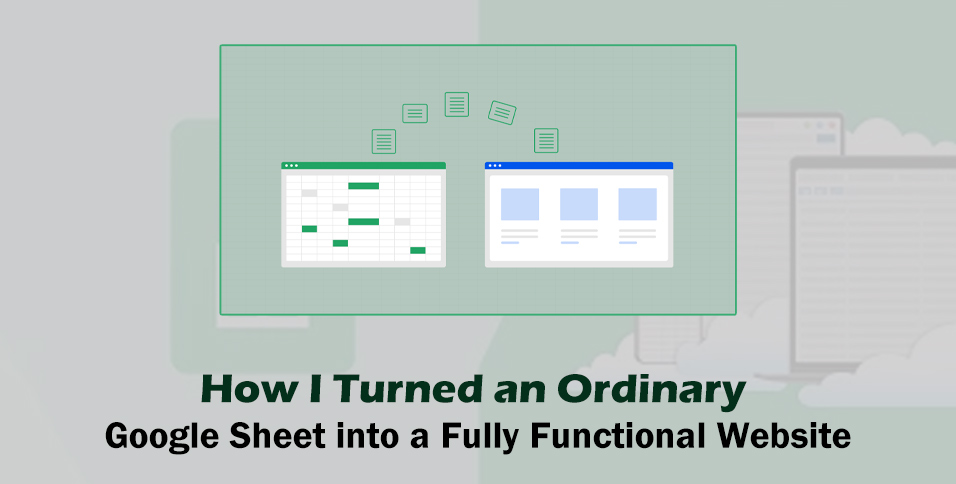
The principle turned out to be elegantly simple. You continue working in the familiar Google Sheet—a tool that many people use daily for a wide variety of tasks. You add products, change prices, edit descriptions. A specialized builder takes the data from this spreadsheet and automatically transforms each row into a neat product card on the website. The title becomes a heading, the price becomes a price tag, and the image link becomes a photograph.
The key advantage of this approach is that the spreadsheet and the website remain connected. When you update the data in the spreadsheet, the website changes automatically. No manual copying, no extra steps—just intelligent synchronization working in real time.
Preparing the spreadsheet: where I started and what rules I followed
I already had a ready-made spreadsheet with products, but for the sake of a clean experiment, I decided to create a new one, following a few simple but important principles.
Structure and data organization
I created a new Google Sheet and gave it a neutral name, such as “Website Data.” In the first row, I placed column headers. Here are the fields I used:
- Title — the textual name of the item
- Price — a numerical value
- Description — a brief text that would appear on the product card
- Image — direct links to photos uploaded to Google Drive
- Category — a label for subsequent sorting and filtering
Then I began filling in the rows. Each new row corresponded to one product. For testing purposes, I filled in about ten items to see how the data would look after being transformed into a website. Nothing complicated—the same actions I had performed hundreds of times before. However, there was now the awareness that this data would not just sit there as dead weight but would become a living, functioning website. This gave even the routine process of filling out the spreadsheet a new sense of purpose.
Choosing the tool to turn the spreadsheet into a website
So, the spreadsheet was ready. The only thing left was to find a tool that would serve as a bridge between the structured data and an attractive visual presentation.
Why other options didn’t work for me
I tried several solutions. Some proved overly complex—they required configuring numerous parameters and understanding APIs, which was a serious challenge for someone without a technical background. Others produced unsatisfactory results—just a table on a web page, with no design whatsoever and no images. Still others were paid and expensive, which was economically unjustifiable for my small project.
What convinced me I had made the right choice
During my search, I came across SpreadSimple. What won me over? I pasted the link to my spreadsheet, clicked a button—and within a few seconds, I saw my products neatly arranged in cards, with photos, prices, and even an order button. The solution worked literally on the first attempt. No preliminary setup, no need to study hours of YouTube tutorials. The tool simply took my data and presented it in an aesthetically pleasing and functional form. I realized this was exactly what I had been looking for.
Step-by-step process: what I did after the website was created
When I saw that the website had been automatically generated from my spreadsheet, I was finally convinced that everything would work out. All that remained was to perfect the result.
Mapping columns to website elements
First, I established the correspondence between the spreadsheet columns and the website elements. The builder itself suggested which column should correspond to which element, but if necessary, I could specify manually: “This column is the product name, and this one is the price.” The system remembered my settings, and the website immediately took on a meaningful structure.
Customizing the visual appearance
Next, I focused on the visual design. I chose a template that seemed most suitable—one with large images and neat cards, reminiscent of modern online stores. I changed the color scheme to match my brand and uploaded a logo. All these actions were performed through a visual interface using drag-and-drop and selecting from ready-made options. No coding, no writing styles, no working with CSS was required.
Adding functionality: search, filters, and shopping cart
I added the useful features necessary for a fully functional store. I enabled search and filters by category—this is important for customer convenience. I added an order form that collects the customer’s name, phone number, and delivery address. All these capabilities were already built into the tool; I simply needed to activate them in the settings.
Connecting payment systems and launching the website
I set up payment processing. I connected PayPal and Stripe—two of the most widely used international services for online payments. I provided my email address to receive order notifications. The entire procedure took no more than five minutes. Finally, I published the website and tested its operation. When I clicked the “Publish” button, I held my breath. My website, created from an ordinary spreadsheet, was now live at a real web address. I opened it on my mobile phone—everything looked excellent, buttons were conveniently sized, and text was easy to read. I tested the checkout process—the form was submitted, and I received a notification in my email. Everything worked flawlessly on the first attempt.
Managing the website after launch: unexpected discoveries
The most interesting discoveries awaited me after the website had begun its life on the internet.
How product updates ceased to be a problem
One day, I needed to add five new items at once. I opened the Google Sheet, added five rows, and filled in the necessary data. I refreshed the website page—the new products were already in place, with correct images, prices, and descriptions. Visitors see updates instantly, without any additional intervention from me and without needing to log into any administrative panel.
Why mistakes no longer cause fear
I stopped being afraid of making mistakes. Did I enter an incorrect price? Simply correct it in the spreadsheet—and within seconds, the correct value appears on the website. Did I accidentally delete a description? Restore it—the website immediately picks up the change. What’s more, I can make edits from my mobile phone. Google Sheets works perfectly on mobile devices, so if I am away from my computer and see the need to change a price or add a new item urgently, I simply open my phone, access the spreadsheet, and make the changes. The website updates automatically.
How clients and acquaintances perceive the website
When I showed the resulting website to acquaintances, they asked: “Great design, who built it? Was it expensive?” When I replied that it was simply my spreadsheet transformed into a website, they didn’t believe me. The website looked modern, loaded quickly, and worked perfectly on mobile devices. No one from the outside would ever guess that an ordinary spreadsheet lies behind this solution.
What types of websites can be created from a spreadsheet
At first, I assumed that this approach was only suitable for small catalogs. However, experience shows that a wide variety of websites can be created from a spreadsheet.
Online stores and product catalogs
An online store is the most obvious use case. Products, prices, shopping cart, checkout—everything works at the level of major players, but without the need for complex backend development.
Real estate catalogs and restaurant menus
A real estate catalog is a convenient solution for agents or private owners. It is easy to add new properties with photos, addresses, and prices, while potential buyers can filter listings by number of rooms or district. A restaurant or cafe menu—the chef or manager can update dishes and prices independently, without involving a programmer. A seasonal menu? No problem—just change a few rows in the spreadsheet, and visitors see the updated offerings.
Portfolios, blogs, and service lists
A portfolio or gallery—for photographers, artists, and craftspeople. The spreadsheet conveniently stores links to works and their descriptions, while the website transforms this into an aesthetically pleasing gallery with the ability to view each work on a separate page. A service list and price list—for freelancers, beauty salons, repair shops. Clients see current prices, and you manage them from a single location. An article catalog or blog—you can even run a blog through a spreadsheet, where each row corresponds to a new post with a title, text, and illustration. Add a new row—a new article appears on the website. And these are far from all the possibilities. The key point is that all these types of websites are built on a single principle: fill in the spreadsheet—get a beautiful, functional, and responsive website that looks equally good on any device.
Answers to questions you may have before getting started
Is this really free?
Most such tools offer free pricing plans. They usually have limitations on the number of products or traffic volume, but for starting out and testing, that is more than sufficient. I started with a free plan, and when the store began to generate its first orders, I switched to a paid plan—its cost turned out to be very affordable, especially when compared to the expense of developing a website from scratch or a monthly subscription to complex builders.
How do I handle complex products with sizes, colors, or discounts?
If your products have variations—sizes, colors, seasonal discounts—modern builders support these scenarios as well. You add additional columns to the spreadsheet, such as “Size” or “Color,” and configure the website so that this information is displayed appropriately. Everything works without the need for programming.
How do I set up payment acceptance from international customers?
For payment acceptance, popular international payment systems—PayPal and Stripe—are connected. They accept credit cards, Apple Pay, Google Pay, and other payment methods common around the world. Setup takes only a few minutes; you simply need to paste the keys from your account into the appropriate fields. Delivery can be configured either with a fixed cost or with the option for the customer to specify the address themselves.
How secure is this solution?
Your data remains with Google, and the website itself uses a secure connection with an SSL certificate. Access to the original spreadsheet can be configured so that only you can see it, while website visitors see only the final result. No one will gain access to your source spreadsheet.
The main takeaway from my experience
If someone had told me a year ago that I would be managing a website through an ordinary spreadsheet, I would have been skeptical. But today, that is my reality, and I consider this approach highly effective. I am no longer dependent on programmers, and I no longer worry about breaking something when updating content. I simply open the Google Sheet, make the necessary changes, and the world sees the updated version of my website. I have saved thousands of dollars that I would have had to pay developers. I have saved months of time that would have been spent learning programming. And most importantly, I have gained a working tool that brings in orders.
If you already have data in a spreadsheet or are just planning to structure it, I recommend trying to turn it into a website. It is much simpler than it might seem at first glance. And it is a far more professional solution than showing clients a Google Sheets link. Tested through personal experience.