Mirror Review
July 13, 2026
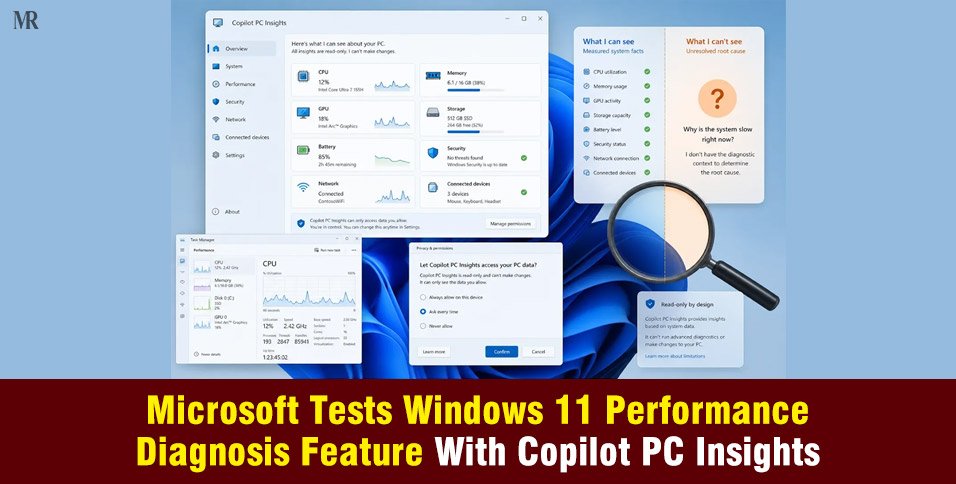
Microsoft is testing a new Copilot capability called PC Insights that allows the AI assistant to analyze your PC hardware and track system responsiveness. The feature is rolling out gradually to consenting users in the United States. It provides a conversational way to check system resources, including CPU, RAM, GPU, storage, and battery health. While this tool simplifies basic troubleshooting by gathering distributed information into one place, it operates strictly as a read-only interface. The current version reports and explains the system status but does not independently repair problems or diagnose the absolute root causes of a slowdown.
How the Windows 11 Performance Diagnosis Tool Works
The Windows 11 Performance Diagnosis feature acts as a conversational translation layer between the user and the built-in data systems of the OS.
Instead of forcing users to navigate complex menus, Copilot taps into Windows APIs to pull real-time hardware statistics.
According to reports from Windows Latest, the AI tool can look up the following details upon request:
- Resource Utilization: Current activity loads for the CPU, RAM, and GPU.
- Storage Tracking: Available space, total capacity, and folder sizes for directories like Downloads and Documents.
- Hardware Inventory: The operational status of connected USB devices, external drives, printers, webcams, Wi-Fi, and Bluetooth.
- System Metrics: Core specifications, BIOS information, battery health, and active antivirus protection status.
This capability streamlines initial troubleshooting.
A user can simply ask the chatbot if Windows recognizes a plugged-in webcam rather than searching through the Device Manager.
| Information to Verify | Windows-Side Path | What It Can Confirm |
| Live CPU, RAM, GPU Use | Task Manager > Performance | Current utilization and graphs |
| Storage and Free Space | Settings > System > Storage | Available capacity by category |
| Device Specifications | Settings > System > About | Processor, RAM, and OS version |
Storage Capabilities and System Limits
A practical example highlighted by Windows Latest shows how Copilot handles storage queries.
When asked if a system has enough room to install a heavy game like GTA V, the AI checks the local drive. If the PC has 87GB available and the game requires over 100GB, Copilot flags the shortfall and recommends clearing space.
However, this feature has clear boundaries. It reads file and folder metadata but cannot read individual file contents without explicit permission. It also cannot calculate variables like temporary unpacking space or future patch updates.
Because it is a read-only tool, it will not delete files automatically, ensuring that users retain full control over their data.
Privacy Protocols and User Consent Modes
Microsoft has designed this system to be strictly opt-in rather than a background monitoring system that runs automatically. Copilot prompts the user for permission the moment a query requires local machine data.
Users can choose between two distinct access settings:
- Ask Every Time: Copilot requests permission for every individual query that requires local system data. This adds minor friction but keeps every access request visible and deliberate.
- Always Allow: Previous approval grants the tool permission to access supported data without prompting the user again.
Regarding data security, official statements note that personal files and hardware metrics are not stored or used for AI model training.
However, user prompts and AI responses may be saved to improve the service depending on individual account configurations.
Distinguishing Symptoms From Root Causes
While the tool makes it easy to view system stats, observing high resource utilization is not the same as diagnosing the root cause of a slow PC. A spike in CPU or RAM can stem from routine background tasks, software updates, or intentional user activity.
A reliable Windows 11 performance diagnosis requires separating clear observations from speculative conclusions. Copilot can accurately state that memory usage is high, but it cannot definitively prove that a specific background process is a malicious error or a fault without long-term tracking. For definitive verification, users should still cross-reference AI responses with the Task Manager.
The Copilot Resource Consumption Contradiction
Independent testing has revealed an ironic twist in the deployment of this tool. Copilot functions as a full web app that runs on a private copy of Microsoft Edge with Chromium components.
Consequently, the application can consume between 800MB and 1GB of RAM even while sitting idle.
This means the tool used to analyze why a system feels sluggish is itself a resource-heavy application.
While an extra gigabyte of memory usage is negligible on high-end desktops, it can create a noticeable footprint on budget laptops or entry-level devices that are already under heavy loads.
What Enterprise IT Administrators Need to Know
Because Microsoft is testing the feature via a gradual rollout, IT departments should not rely on it for corporate help-desk workflows.
Managed environments often block or modify the consumer version of Copilot entirely.
Furthermore, conversational answers should never replace official endpoint-management software for security or compliance tracking.
IT teams looking to manage these features should consult official Microsoft administrative documentation for their specific Windows edition rather than relying on consumer settings.
The Evolution of Windows Diagnostics
Windows has spent decades changing how users manage system health. Looking back highlights why a conversational AI tool marks a major shift in design philosophy.
- The Early Era (Windows 95 to Windows XP): Users relied heavily on simple tools like the classic Task Manager and Resource Meter. Troubleshooting required manual tracking, and a freezing app often forced a hard reset.
- The Diagnostic Framework Expansion (Windows 7 to Windows 10): Microsoft introduced automated troubleshooters, Reliability Monitor, and advanced Event Viewer logging. While powerful, these tools buried crucial data deep inside nested menus.
- The AI Integration Era (Windows 11): With the shift toward AI diagnostics, Microsoft aims to replace complex interface navigation with natural language. The feature also aligns with the company’s AI strategy, supported by its investments in AI infrastructure and services.
The Verdict on Windows 11 Performance Diagnosis
The new Windows PC Insights tool fixes a long-standing usability issue by collecting fragmented system data into a single chat window. Its most reliable role is serving as an open inventory reporter rather than an automated repair agent.
As long as users treat the recommendations as general guidance and verify crucial data through Task Manager, this new phase of Windows 11 performance diagnosis could become a highly efficient shortcut for everyday computer maintenance.
Maria Isabel Rodrigues