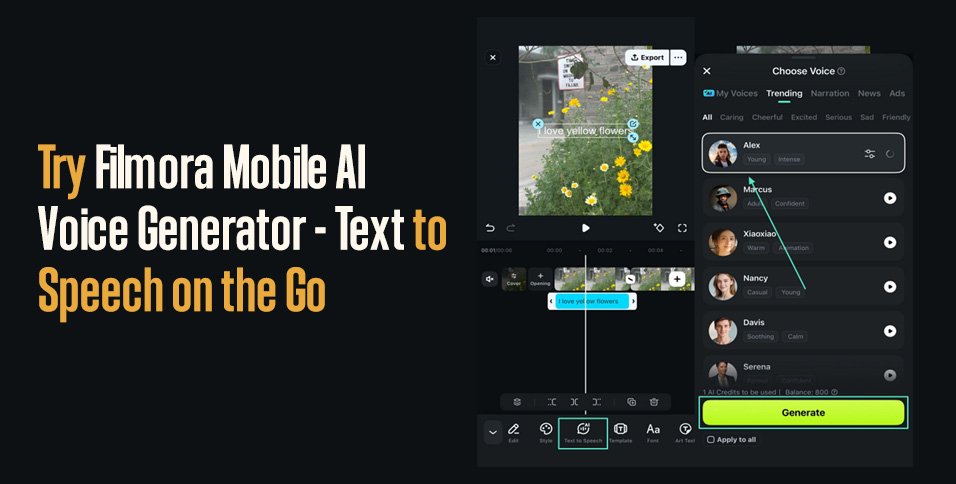
Wondershare Filmora’s AI voice generation feature allows content creators to turn written scripts into clear narration within the mobile app. Designed for quick and efficient content production, the Filmora App [iOS/Android] helps users add voiceovers to videos without recording equipment. The AI voice generator is useful for mobile creators who want speed and convenience. This article is a guide on this app and how to use it.
Part 1. What is an AI Voice Generator in Filmora Mobile?
The text-to-speech feature of the Filmora App creates voice-overs straight from user-written scripts. It simplifies video content production by permitting editors to narrate videos without the need for third-party recording gear. It’s especially user-friendly for creators who create shorter videos or social media posts.
This tool provides a variety of realistic AI voices that can read the script like a human. It comes prebuilt into a seamless editing experience and enables users to focus on video production.
Key Features
- Various AI Voice Options: Filmora Mobile TTS comes with a selection of AI voices, with users capable of selecting from different genders and styles for appropriate narration.
- Text Editing: The voiceover is automatically updated when users edit the narration script.
- Adjustable Voice Settings: Users can match the mood of their video content by adjusting the voiceover’s speed and volume.
- Multiple Audio Tracks: Filmora allows creators to use multiple layers and add music tracks to the voiceover track.
- Two-Way Navigation: The AI text-to-speech feature can be launched from 2 places: the Toolbox and the editing interface.
Part 2. How to Convert Text to Speech in Filmora Mobile App
The Filmora App offers a user-friendly workflow for converting text to speech. Follow the guide below and learn how to generate realistic voiceovers using this application:
Step 1. Enter a New Project to Import Media
To begin with, tap the “New Project” button and import the media to the editing interface.
Step 2. Add and Customize the Text
Using the following window, tap the “Text” tab at the bottom and type the relevant writing. This text can be edited using the dedicated editing panel.
Step 3. Choose an AI Voice
Refer to the bottom toolbar and select the “Text-to-Speech” feature to pick an AI voice from the following interface. These voices can be previewed to be sure of their tone and emotion. Users can also search the speakers by their emotions and use cases. To apply the voice to the script, press the “Generate” button at the bottom.
Step 4. Preview and Export the Audio to the Device
As the audio is generated and its track is created in the timeline, tap it to access the editing tools. The voiceover can be refined using these tools. Tap the “Export” button at the top right to save the video to the phone after the video is ready.
Part 3. 5 Tips for Better AI Voice Generation on Mobile
For better text to voice AI narration results on the phone, there are some prerequisites one must cater to. Follow the tips below for better AI voice generation on mobile:
- Script Optimization: Avoid using long, complex sentences; make conversational sentences. Input needs to be simple and well-punctuated for more natural speech using mobile TTS tools.
- Voice Selection: Choose a voice suitable for the purpose of the content. Formal tone for tutorials, neutral tone for explanations, expressive tone for story content or social content.
- Speed/Pitch Balancing: Speak a little slower than usual to make your words easier to understand. Extreme pitch changes are not recommended as they sound synthesized.
- Language and Accent Matching: Make sure to choose a language and accent similar to the target audience. This helps to understand and to make sure that the voice sounds correct.
- Post Processing Enhancement: Enhance the audio using simple post-processing functions once created, to normalize volume, reduce noise, and presumably make the sound more professional.
Conclusion
In essence, mobile phone workflows are easier to handle and access. This article explored the AI voice generator feature on the Filmora App and how to use it. The application has all the useful TTS utilities within its video editor, allowing users to integrate the voiceover directly in the timeline.Note to Reader: This section is an independent editorial review based on publicly available product information and comparative analysis. It is intended for informational purposes only and does not represent the official views or endorsements of any publisher, software company, or media organization.