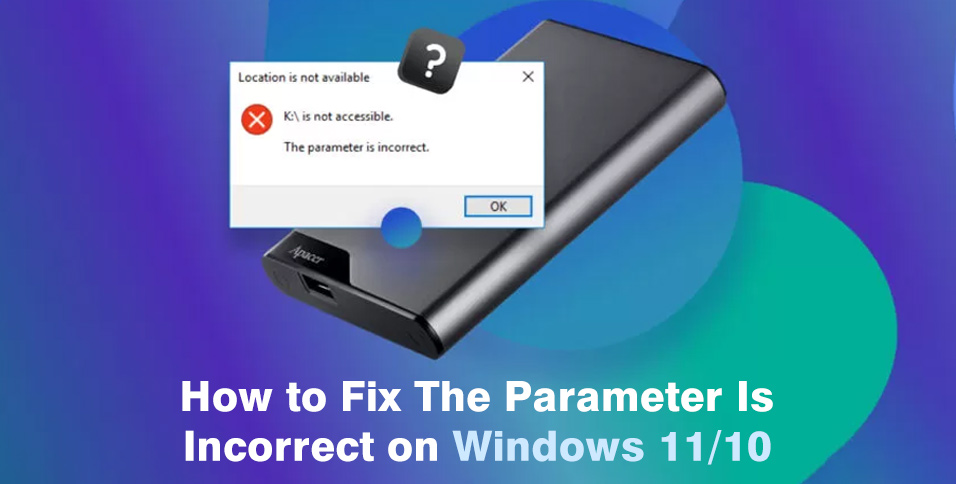
You try to open your USB flash drive or external disk in File Explorer, but Windows refuses to cooperate and throws back the dreaded error: “D:\ Drive is not accessible. The parameter is incorrect.” Panic sets in as you realize your valuable data seems trapped inside, unreachable and at risk. However, there’s no need to worry. In this blog post, we’ll briefly explain what this error means, explore the most common causes, and walk you through step-by-step solutions to resolve it. Plus, we’ll also show you how to recover your data from the affected drive safely. Let’s get going!
What Does The Parameter Is Incorrect Mean?
When dealing with the parameter is incorrect error, it basically means Windows can’t read your drive properly. The “parameter” here is just a fancy way of saying the settings or values Windows uses to talk to the drive are messed up, missing, or don’t match. Your files are still there, but Windows cannot reach them until the issue is fixed.
Common Causes of The Parameter Is Incorrect Error
Windows might display the “drive is not accessible the parameter is incorrect” error for several reasons. Common triggers include:
- Physical issues on the disk, such as bad sectors.
- The driver is outdated, missing, or not working properly.
- Conflicts with other connected devices or USB hubs.
- The file system on the drive is corrupted or damaged.
- Viruses or malware are affecting files on the drive.
- A loose cable, a faulty USB port, or an unstable connection.
How to Recover Data from an Inaccessible Drive Quickly?
Before fixing the parameter is incorrect Windows 11/10 error, we highly recommend using a dedicated tool to retrieve files from the affected drive and export them to another device. This protects your important data in case a repair goes wrong. One reliable option is Tenorshare 4DDiG Data Recovery, which excels at recovering data from unreadable, inaccessible, or logically corrupted drives. Take a look at its main features:
- Recognizes over 2,000 file formats, including photos, videos, documents, emails, audio files, and archives.
- Works with HDDs, SSDs, USB flash drives, SD/memory cards, external hard drives, and other storage devices.
- Retrieves files lost due to deletion, formatting, system crashes, or virus attacks with a high success rate.
- Provides an intuitive interface that’s easy for beginners to use.
The following steps explain how to use this free data recovery tool to retrieve your files:
Step 1: Launch the program on your computer. On the main screen, locate the drive showing the “The parameter is incorrect” error and select it. Then click Scan to search for recoverable files.
Step 2: While the scan is running, you can preview files to check which ones are intact and worth recovering. You can also pause or stop the scan at any time once you find the desired files.
Step 3: After the scan finishes, select the files you want to restore. Click Recover and choose a different drive to save them.
Now, let’s take a closer look at how to fix the “d is not accessible the parameter is incorrect” error!
Top 7 Ways to Fix Drive Is Not Accessible Access Is Denied in Windows
Option A: Check Hard Drive Connections
The first thing to check when facing this error is to rule out connection issues. If the problematic drive is currently connected, eject it using the Safely Remove Hardware feature. Then unplug the USB cable and reconnect it firmly to the same port.
No luck? try connecting the device to another USB port. On desktop PCs, rear ports are generally more stable than front ones, while on laptops, testing both left and right side ports is recommended. Next, examine the cable and drive port for visible damage, dust, or debris.
Option B: Repair Disk Errors via CHKDSK
One possible way to fix the parameter is incorrect Windows 11/10 error is by using the CHKDSK utility. This Windows-embedded tool can scan the problematic disk for file system errors, bad sectors, and other issues that may prevent Windows from accessing your files. Here’s how:
Step 1: Press Win + Q, type cmd, then right-click Command Prompt and choose Run as administrator.
Step 2: Type chkdsk X: /f /r and hit Enter. Make sure to replace X with the letter of the problematic disk.
Option C: Replace Corrupted System Files
Sometimes, the parameter is incorrect error may be related to corruption within Windows system files. That’s where the System File Checker (SFC) tool comes in. Here’s how you can use this built-in utility:
Step 1: Run the Command Prompt app as an administrator.
Step 2: In the new window, type DISM /Online /Cleanup-Image /RestoreHealth and hit the Enter key.
Step 3: After DISM finishes, execute the sfc /scannow command.
Option D: Assign a New Drive Letter
If the error message “drive is not accessible the parameter is incorrect” still appears, it’s likely because the assigned drive letter conflicts with another device or has become invalid. To resolve this, you can assign a new, unused drive letter to the affected drive. The detailed steps are as follows:
Step 1: First, press Windows + X followed by selecting Disk Management from the menu.
Step 2: Look for the affected disk, right-click on it and pick the Change Drive Letter and Paths option.
Step 3: After that, click Change. Choose a letter that is not currently assigned to any other drive. Finally, tap OK.
Option E: Scan for Malware
In many cases, viruses or malware are the main culprits behind drive access issues. They can interfere with system files and disrupt communication between Windows and external devices, leading to errors such as “d is not accessible the parameter is incorrect.” Windows provides Windows Security to help detect and remove these threats.
If you have a trusted third-party antivirus installed, it can be used as an alternative. Make sure the software is up to date before running a complete scan, ensuring that all connected drives are included.
Option F: Update the Driver
Many Windows users don’t realize that their disk drivers need updates to work properly. If a driver is old or corrupted, you might encounter the parameter is incorrect error. Here’s how to update your disk drivers:
Step 1: Press Win + R on your keyboard. Then, input devmgmt.msc and Click OK.
Step 2: Look for the drive under Disk Drives, right-click it, and choose Update device.
Step 3: Click on the first option to proceed.
Option G: Format the Drive
If all the above-mentioned methods fail to fix the parameter is incorrect Windows 11/10 error, then your last option is to format the affected device. Before starting, it is important to ensure that all important files are backed up, as formatting will erase everything on the drive.
Step 1: Open Windows Explorer, right-click the drive, and select Format.
Step 2: In the format window, choose a suitable File System and decide whether to check Quick Format.
Step 3: Click Start to begin the formatting process.
Final Thoughts
This page answers the questions of “What does the parameter is incorrect mean?” and “How to fix the parameter is incorrect error?” From checking connections to repairing system files, there are multiple methods that can help restore access. However, some more aggressive approaches may result in permanent file loss. Fortunately, Tenorshare 4DDiG offers a reliable and easy way to extract data from unreadable drives.