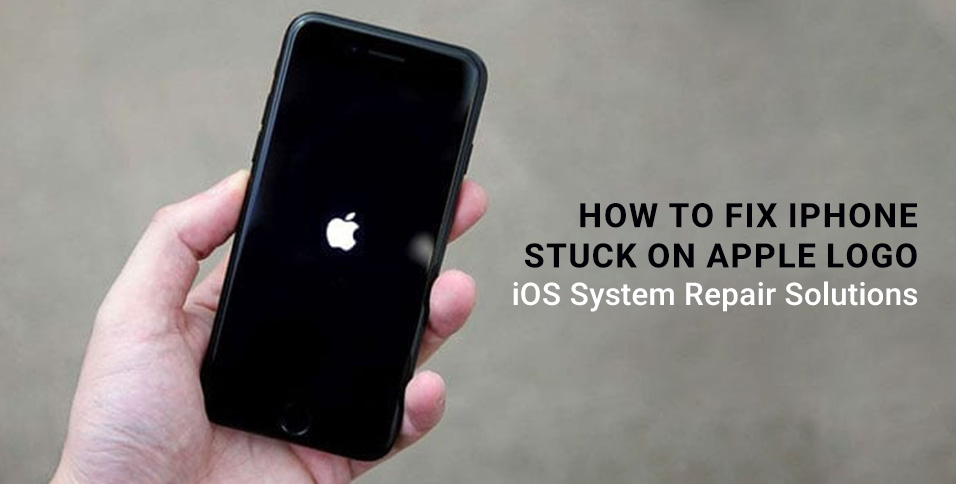
Finding out why your iPhone keeps stuck on the Apple logo might be annoying. An iPhone 15 Pro or older model upgrade, jailbreak, data transfer, or hardware fault might cause this issue. Do not worry—your iPhone may not be irreparably harmed. With numerous iOS System Repair solutions, you may solve the Apple logo boot loop without losing data. This post covers the top six options, starting with Wondershare, the most effective. Repair iOS using Dr.Fone, Force restarts, recovery mode, and DFU restorations will also be covered.
Why Is Your iPhone Stuck on the Apple Logo?
Devices that can’t start up generally have this issue. Software issues are more common; however, hardware issues may also occur, let’s look over some below:
- iOS Update Failures:
Errors during iOS updates, such as losing the internet or power, can corrupt system data, causing your iPhone to freeze on the Apple logo.
- Jailbreak Errors:
If your device’s jailbreak fails, it may cause a boot loop by altering vital system files.
- Data Transfer Interruptions:
Interrupted or damaged data transfers between iPhones or iTunes may cause your iPhone to freeze during boot.
- Restoring Backup Problems:
Failure to restore from an old or damaged backup file might cause the device to freeze on the logo screen.
- Physical Damage (Brief Mention):
In rare cases, physical damage such as drops, water exposure, or internal damage might cause system starting troubles.
Solution 1: Wondershare Dr.Fone – iOS System Repair
Wondershare Dr.Fone – iOS System Repair is perfect for iPhones stuck on the Apple logo. Why? Because it fixes 95% of iOS boot loop issues without data loss, supports all iPhones (including the iPhone 16), and works with iOS 15–18 and the iOS 26 beta. The click-through interface lets you fix gadgets at home without technical experience.
Why Choose Dr.Fone First?
- No data loss in Standard Mode.
- Works with all iPhones and iOS.
- Repairs 150+ iOS problems, including boot loops, white/black screen, 4013 error, and more.
- Safe iOS downgrade/upgrade.
How to Repair iOS System with Dr.Fone (4 Steps)
Step 1: Launch and Connect
Download and install Dr.Fone for PC or Mac. Select “System Repair” in the program and connect your iPhone via USB. Select “iOS Repair.”
Step 2: Select Standard or Advanced
Standard Repair fixes common issues, such as a stuck Apple logo, without destroying data. Advanced Repair resets the device, so use it only if Standard fails.
Step 3: Enter Recovery Mode
Enter “Recovery Mode” on your iPhone using the on-screen instructions. Dr.Fone recognizes your device and iOS version when you enter them.
Step 4. Download and Repair Firmware
Dr.Fone will download and fix the right iOS firmware. A progress meter will appear during the 10–15-minute procedure. After finishing, your iPhone will reboot properly.
Solution 2: Force Restart (Hard Reset)
A force restart is often an effective solution to reboot phone without modifying system files and resolves abrupt freezes, minor app crashes, and iOS-related issues. How to forcibly restart your iPhone per model:
iPhone 8, iPhone X, and Later (Including 16):
Step 1. Press and release Volume Up quickly.
Step 2. Press and release Volume Down quickly.
Step 3. Hold the Side button for 30 seconds to see the Apple logo.
Step 4. Release the button when the Apple logo appears.
iPhone 7 and iPhone 7 Plus:
Step 1. Press and hold the Volume Down and Sleep/Wake (Side) buttons simultaneously.
Step 2. Hold both buttons until the Apple logo displays.
Step 3. When the logo appears, release.
iPhone 6s, SE (1st Gen), and Older
Step 1. Press and hold the Home and Sleep/Wake buttons.
Step 2. Hold both buttons until the Apple logo appears.
Step 3. Release the buttons and wait for the reboot.
Solution 3: Recovery Mode Update via iTunes/Finder
Recovery Mode enables you to restore your iOS device without losing data. It’s better than a force restart and useful when other approaches fail. This patch may be done in iTunes or Finder:
Step 1. Connect the device to a computer with a lightning cable.
Step 2. Launch “iTunes/Finder.”
Step 3. Force restart your iPhone but hold the last button after the Apple logo appears until the “Recovery Mode” screen displays.
Step 4. A pop-up on your computer will offer “Check for Update or Restore.”
Step 5. Reinstall iOS without losing data by clicking “Update” instead of Restore.
Step 6. iTunes or Finder will download and install the newest iOS in 20 minutes.
Important: Error 4013 implies hardware or system issues. For safety, choose Wondershare Dr.Fone – iOS System Repair.
Solution 4: DFU Mode Restore
Device Firmware Update (DFU) Mode may be your last resort if your iPhone keeps getting stuck on the Apple logo. DFU bypasses iOS, allowing you to wipe and reload firmware more deeply than Recovery Mode. For iPhone 8–15, use these DFU Mode Entry steps:
Step 1. Connect iPhone to Mac or PC with Finder or iTunes open.
Step 2. Quickly press and release the Volume Up and Down buttons.
Step 3. Hold the Side button for 10 seconds.
Step 4. Hold the “Volume Down” button for 5 seconds while holding the “Side” button.
Step 5. Release the Side button but hold Volume Down for 5 seconds.
Step 6. “DFU Mode” is initiated if the screen stays dark.
To restore your iPhone, follow these steps:
Step 1. iTunes/Finder will display a notification stating it needs recovery.
Step 2. Click “Restore iphone” to reinstall iOS fresh.
Step 3. Software downloads and auto-installs new IPSW files.
Step 4. Wait 15–30 minutes for the procedure to finish.
Solution 5: Battery/Storage Hardware Check
If all system-level remedies fail and your iPhone remains on the Apple logo, consider hardware issues. Firmware repairs may not fix these problems.
- Dead Battery Test:
For the Dead Battery Test, plug your iPhone into an authorized charger and wait at least one hour. The battery may become significantly exhausted if it vibrates or overheats. If not, your battery may be bad.
- Storage Overload Fix:
Overloaded drives might create boot difficulties. Access your iPhone’s file system with 3uTools on PC to manually remove huge or damaged files.
- Water Damage Clue:
To identify water damage, remove the SIM tray and check the Liquid Contact Indicator (LCI) for signs of moisture. The Apple logo freeze may be caused by moisture damage if it turns red.
Preventing iPhone from Stuck on Apple Logo in the Future
Prevention is preferable to repairing. Follow these essential tips to avoid your iPhone being stuck on the Apple logo again:
- Keep Care to Update iOS:
Always update your iPhone with a reliable Wi-Fi connection and a charged battery. Interrupted updates often cause boot difficulties.
- Avoid jailbreaks:
Avoid jailbreaking until required. Your device becomes more susceptible to system corruption.
- Using trusted software and accessories:
Only use Apple-certified cables and software for backups, transfers, and repairs.
- Regular backups:
Use iCloud or iTunes to back up regularly. You’ll appreciate recoverable data if problems emerge.
- Do Not Force Shutdown Mid-Update:
Avoid shutting off or restarting your iPhone during system upgrades or recoveries to avoid major boot issues.
Conclusion
Getting stuck on the Apple logo doesn’t imply your iPhone is dead. Simple force restarts and complex tools like Dr.Fone – iOS System Repair can fix your smartphone. Start with data-safe solutions and escalate as needed. Always back up your iPhone and handle upgrades carefully to avoid similar issues. The appropriate tools and practices will keep your iPhone smooth, secure, and dependable.
Also Read: What Is The Most Business-Friendly Operating System, iOS Or Android?